


Offline maps have a trust problem. Most people download them before a trip, open the app a day later somewhere remote, and discover the navigation either freezes, reroutes them into a field, or simply refuses to find their location. The maps are there. The GPS is on. Something still feels broken.
The culprit is rarely the map itself. It’s almost always a handful of overlooked phone settings that quietly undermine everything. Getting offline navigation to work the way it’s supposed to is less about which app you use and more about how you’ve configured your device before you leave. Here’s what actually matters.
Turn on Auto-Update, but Lock It to Wi-Fi Only

Downloaded maps expire after roughly 15 days or less. To keep them current, you need to activate automatic updates in the Google Maps offline settings, which ensures your maps stay refreshed without requiring you to think about it. The catch is the default update setting, which can trigger downloads over mobile data without warning.
If you want maps to update only when connected to Wi-Fi, go to the Download preferences option and select “Over Wi-Fi only.” This applies to both manually downloaded maps and automatic updates. That single toggle stops your phone from silently burning through mobile data mid-trip while keeping your offline maps genuinely fresh.
Set Your Storage Location Before You Download Anything

By default, offline maps are downloaded on your device’s internal storage. On Android 6.0 or higher, you can also save them to an SD card that’s set up for portable storage. Changing this setting after you’ve already downloaded maps forces you to re-download everything, so it’s worth deciding upfront.
Android users with SD cards can store maps in Google Maps or Maps.me on the SD card, saving internal space. At the upper end, maps can take up about 500 MB to 2 GB depending on the area, with more urban environments consuming more data since locations, stores, and points of interest are all stored for offline navigation. Getting that data off your internal storage matters for phones with tighter capacity.
Download Overlapping Map Areas, Not Just One Region
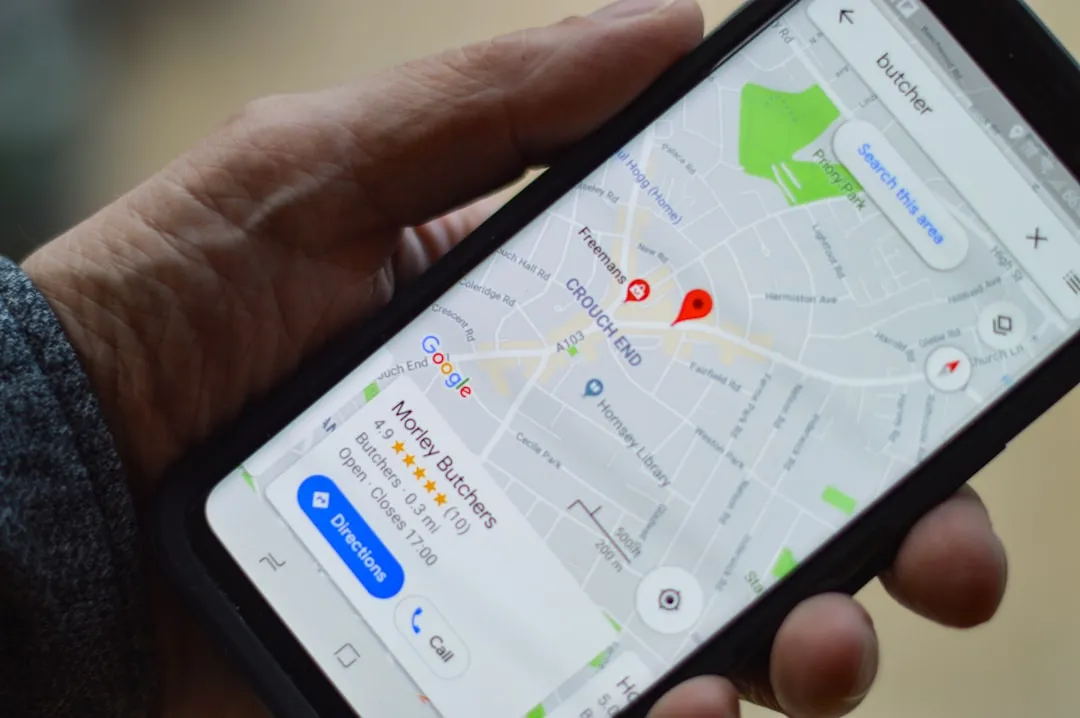
When downloading, Google Maps requires you to choose a rectangular area, so truly covering the territory you need may require multiple offline maps. A single download that cuts across a border or misses a key stretch of road creates dead zones that only show up when you’re already in the middle of navigating them.
If the selection rectangle shrinks when you pinch to zoom out, download as much as possible and repeat the process for additional maps. Downloading multiple overlapping maps is the most effective way to cover a large area, and you can download as many as your storage allows. It takes a few extra minutes during planning, but it’s the difference between a reliable map and one that fails at the worst moment.
Use Airplane Mode Intentionally During Navigation

Airplane mode stops your phone from constantly trying to establish a network connection when you’re in an area with poor or no cell coverage. Most people don’t realize that a phone hunting for a signal in a dead zone is consuming significant power, and that search does nothing to help the navigation that’s already running locally.
Even with Wi-Fi and Bluetooth manually turned off, GPS continues to work because your phone communicates directly with satellites, not cell towers. So long as maps are downloaded ahead of time, navigation functions just as well in airplane mode as when connected to a network. On long drives, this can add an extra hour or two of battery life.
Disable Google Location Accuracy When Going Fully Offline
On Android, the Google Location Accuracy setting forces constant Wi-Fi scanning and Bluetooth beacon collection, consuming roughly 9 to 14 percent of background battery. Offline navigation relies solely on GPS and inertial sensors, making this setting redundant once you’re away from connectivity.
You’ll find this under Settings, then Location, then Google Location Accuracy. Toggling it off while you’re navigating offline doesn’t reduce positioning quality in any meaningful way during travel, but it does stop background processes from competing with your navigation app for power. It’s a small change that has a compounding effect over a full day of driving or hiking.
Update Your Maps the Night Before, Not the Morning Of

The night before leaving, open Google Maps, tap the profile picture, and go to Offline Maps. Under Downloaded maps, tap the three-dot menu and select Update. It takes just a few minutes over Wi-Fi. Doing this while your phone is plugged in overnight means the update completes cleanly, without interruptions from low battery warnings or background app competition.
Google Maps offline maps auto-update every 15 days when your phone is connected to Wi-Fi, but that cycle doesn’t always align with your travel dates. A manual update the evening before departure guarantees you’re working with the most current data available, including any road changes or new points of interest added in recent weeks.
Save Key Places as Offline Pins Before You Leave

Save key places to a list, such as hotels or must-visit spots, so they load offline. This matters more than it sounds. Searching for an address while offline works only within your downloaded area, and if the spelling or formatting differs slightly from what’s stored, the search can return nothing. A saved pin removes that variable entirely.
Once your maps are downloaded, you don’t need any data connection for turn-by-turn directions, searching within the downloaded area, or viewing points of interest. Saving your accommodation, key transit stops, and any confirmed day-trip destinations as named pins before departure means you can navigate to them with a tap, even with no signal at all.
Choose the Right App for the Type of Terrain You’re Navigating

For hiking and adventure travel, Maps.me stands out because its OpenStreetMap data includes trails, elevation markers, and rural paths that Google and Apple don’t cover. Download the country before you go, and you’ll have a reliable offline companion even in areas with zero connectivity.
For urban navigation in cities across Europe, North America, or Japan, Google Maps offers an unmatched points-of-interest database, reliable offline search, and solid baseline transit directions even without a connection. Picking the wrong app for the terrain type is one of the most common reasons offline maps feel unreliable. The maps might be perfectly downloaded, but the app simply isn’t designed for that environment.
Test Everything in Airplane Mode Before You Actually Need It

Testing your setup in airplane mode before departure is essential: open the app, get a route, and start navigation while disconnected. This one step catches more problems than any other part of the preparation process. Corrupted downloads, areas that weren’t fully saved, and apps that quietly require an internet connection to initialize all reveal themselves immediately during a short test run.
Keep GPS on and use airplane mode to conserve battery on the ground. If routes fail, you may simply be outside your downloaded offline area, and zooming out to check coverage tiles confirms this quickly. Testing removes the guesswork and gives you time to fix things from a comfortable place, rather than a parking lot somewhere unfamiliar.
Manage Your Cache to Prevent Silent Storage Failures

Sporadic reports from users have shown Google Maps storage reaching tens of gigabytes, which can be significant on devices with only 64 or 128 GB of total storage. In most cases, a data caching issue is the cause, and a hidden setting allows you to clear that extra data by flushing the cache.
To manage offline maps, open Google Maps, tap your profile image, and access the Offline Maps menu. This menu shows how many maps you’ve downloaded and the storage space they occupy, and you can delete any you no longer need directly from there. Keeping this menu tidy also prevents the app from hitting storage limits mid-download, which is one of the quieter reasons a new offline area sometimes fails to save completely.
Final Thoughts

Offline maps are genuinely dependable when the settings behind them are right. The technology works. What fails is the gap between downloading a map and actually configuring the phone to support it: the storage location, the update frequency, the power management, the airplane mode habit, the pre-trip test.
None of these steps are complicated. Most take under a minute. Together, they shift offline navigation from something that might work into something you can count on, which is exactly what it should be when you’re somewhere a signal can’t reach.
AI Disclaimer: This article was created with the assistance of AI tools and reviewed by a human editor.